ChatNexus User Guide
Everything you need to build, deploy, and manage your ChatNexus AI assistants — step by step.
Integrating Your Agent
Embed your AI chatbot on your website in minutes.
Get the Embed Code
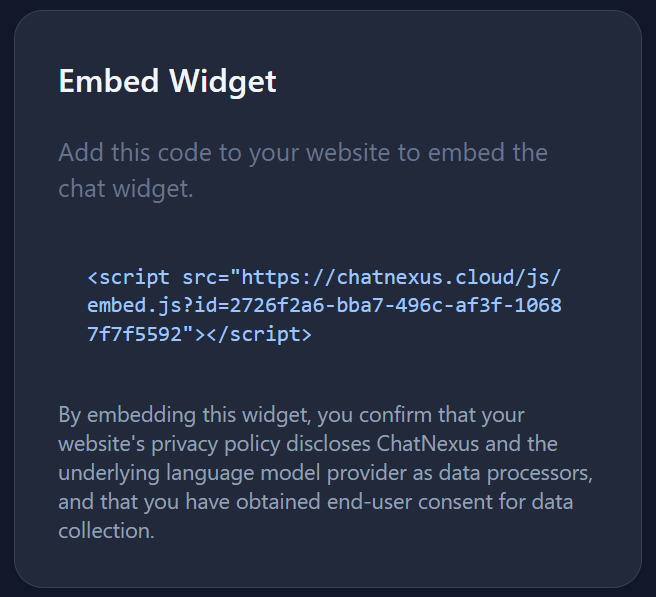
Go to your agent's detail page. In the Embed Widget section on the right, you'll find a script tag ready to copy:
<script src="https://chatnexus.cloud/js/embed.js?id=YOUR_AGENT_UUID"></script>
Hover over the code block and click Copy to copy it to your clipboard.
Add to Your Website
Paste the embed script into your website's HTML - typically just before the closing
</body> tag.
The script automatically injects a floating chat widget into the page.
<html>
<body>
    <!-- Your website content -->

    <script src="https://chatnexus.cloud/js/embed.js?id=YOUR_AGENT_UUID"></script>
</body>
</html>Whitelist Your Domain (Paid Plans)
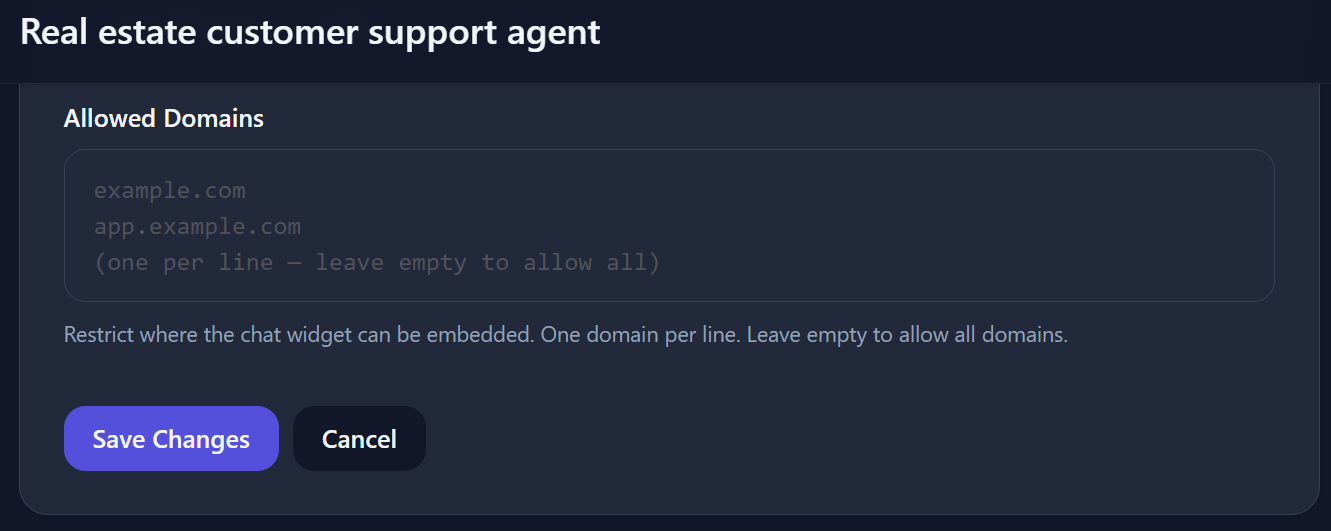
On paid plans, you can restrict the widget to whitelisted domains. On the agent detail page, use Allowed Domains and add each domain where you'll embed the widget (one per line):
Enable Voice Mode (Optional)
If Voice Input is enabled for your agent, the widget shows a microphone button. In some cross-origin embeds, browser microphone permissions can be blocked inside iframes.
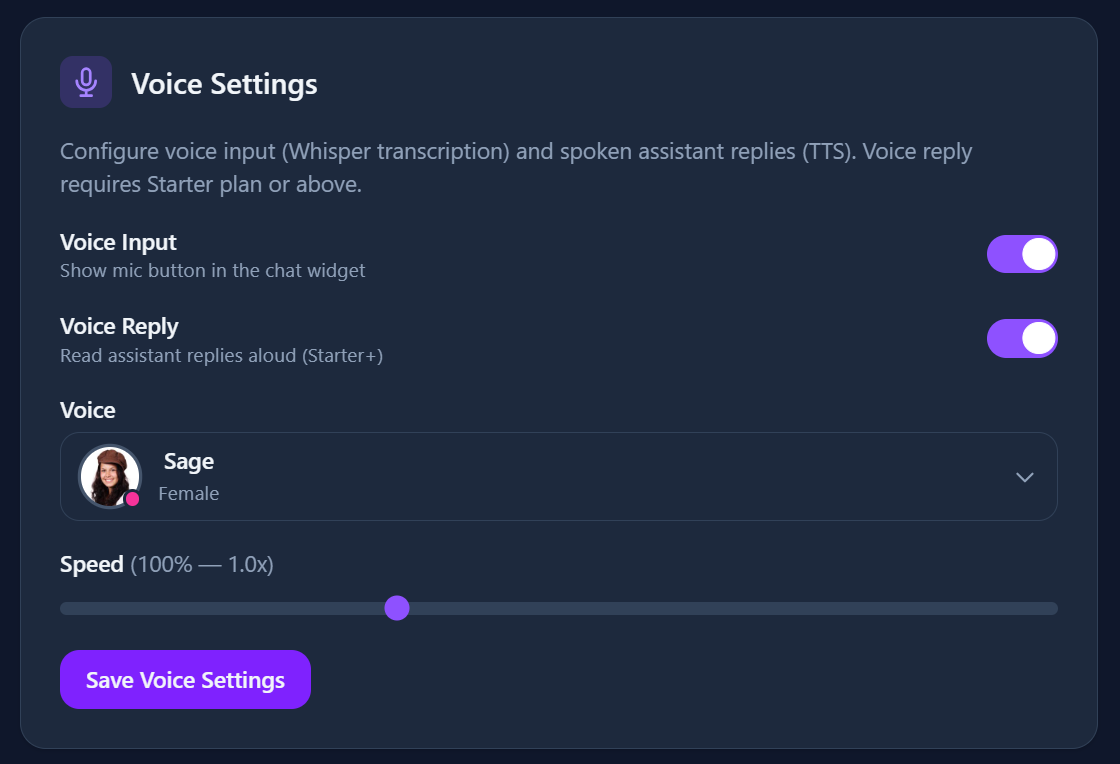
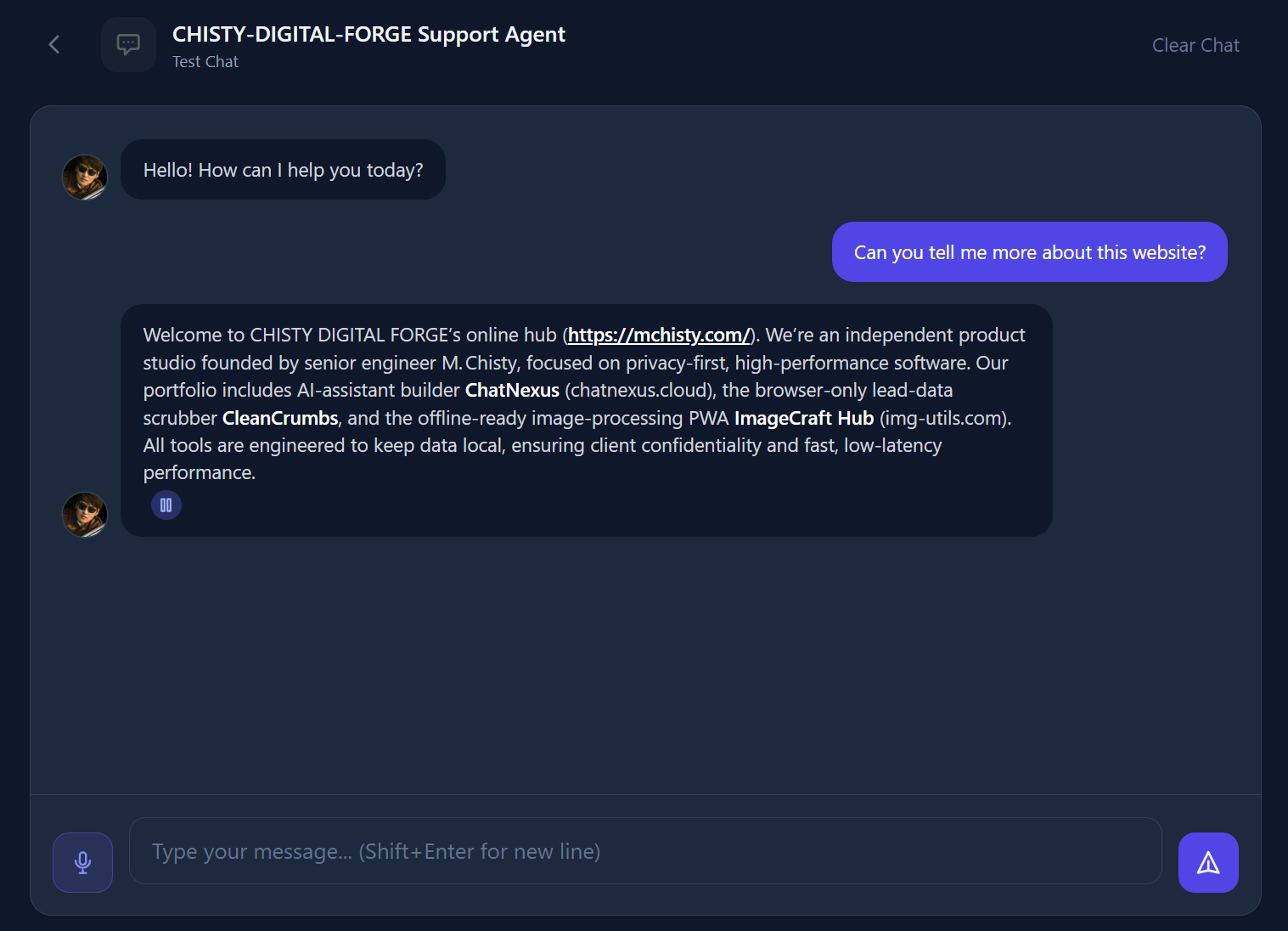
/widget/{agentUuid}/voice) and relay
transcription securely back to the widget, so voice input still works without host-site header changes.
API Endpoint (Advanced)
In addition to the embed widget, your agent exposes a REST API - a direct way to talk to your agent programmatically, without any pre-built chat interface.
Widget vs. API - which should you use?
Embed Widget (script tag)
- ✔ Ready-made floating chat button
- ✔ No coding required - paste & done
- ✔ ChatNexus handles the UI for you
- ✘ Fixed look and feel
REST API
- ✔ Full control over your own custom UI
- ✔ Works in mobile apps, backends, dashboards
- ✔ Automate workflows without a human present
- ✘ Requires developer knowledge
Use the API when you want to build your own chat interface inside your product, send automated messages from your backend, or integrate the agent into a mobile app - anywhere the embed script can't go.
Your endpoint details
You'll find these values in the API Endpoint section on your agent's detail page:
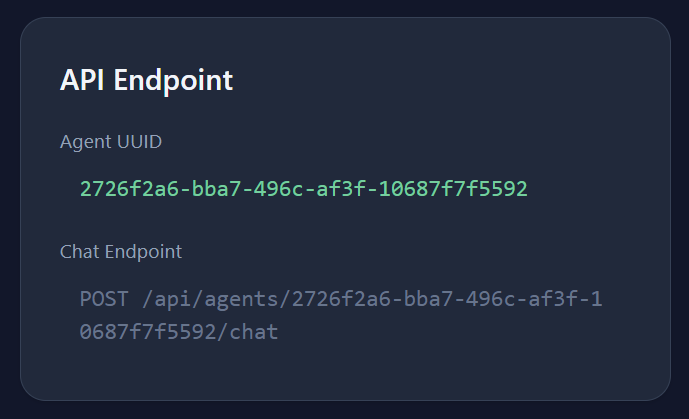
Example: sending a message via JavaScript
Here's how to call your agent from any webpage or JavaScript application:
fetch('https://chatnexus.cloud/api/agents/YOUR_AGENT_UUID/chat', {
  method: 'POST',
  headers: { 'Content-Type': 'application/json' },
  body: JSON.stringify({ message: 'Hello, what can you help me with?' })
})
  .then(res => res.json())
  .then(data => console.log(data.reply));
The API responds with a JSON object containing your agent's reply, which you can display however you like in your own interface.
Branding Control
Depending on your plan:
Preview the Widget
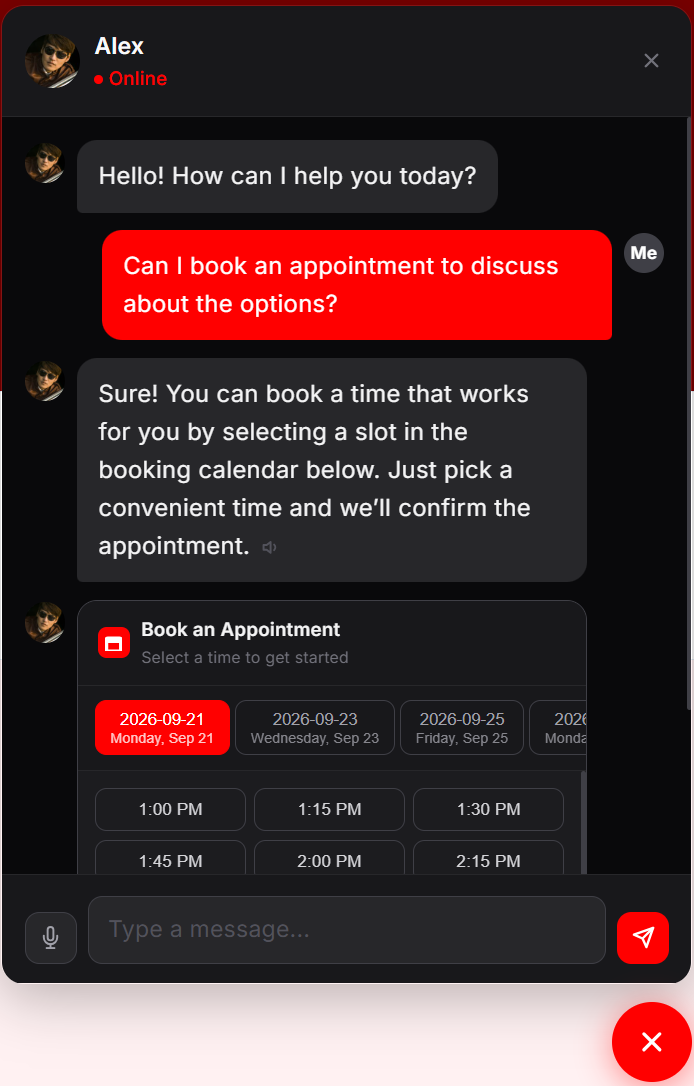
After embedding, visit your website to see the chat widget in action. It appears as a floating chat button that expands into a chat panel (or can open automatically if you enabled open by default on the agent detail page).
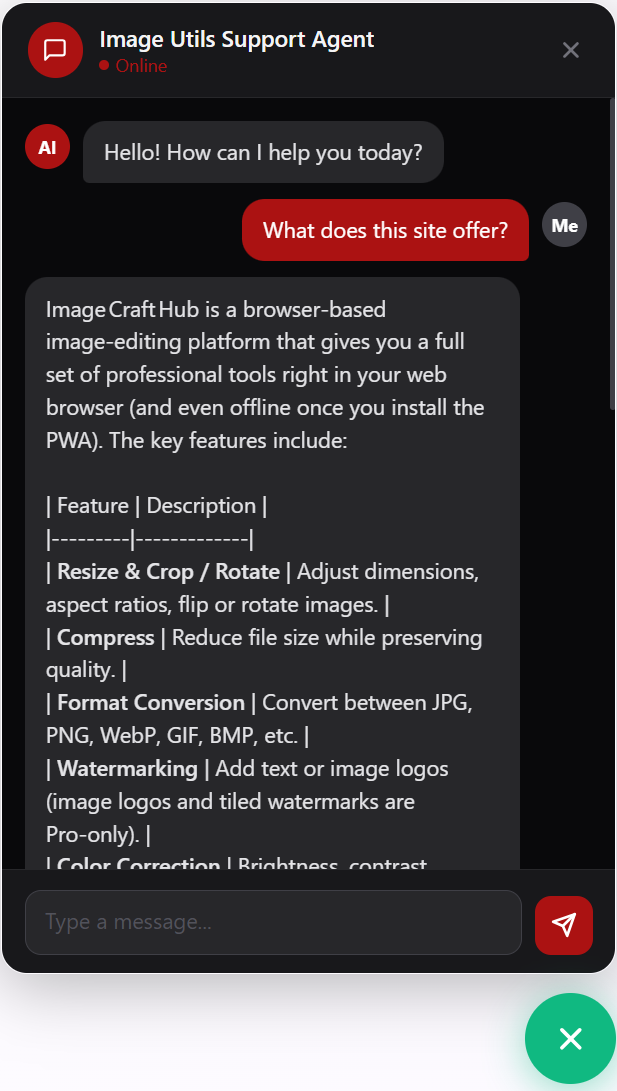
If appointment booking is enabled for the agent, visitors can also pick a date and time directly inside the chat — no separate booking page required.