ChatNexus User Guide
Everything you need to build, deploy, and manage your ChatNexus AI assistants — step by step.
Creating an Agent
Build your first AI chatbot in a short guided wizard: Template, Basic Info, Customize, then Knowledge Base.
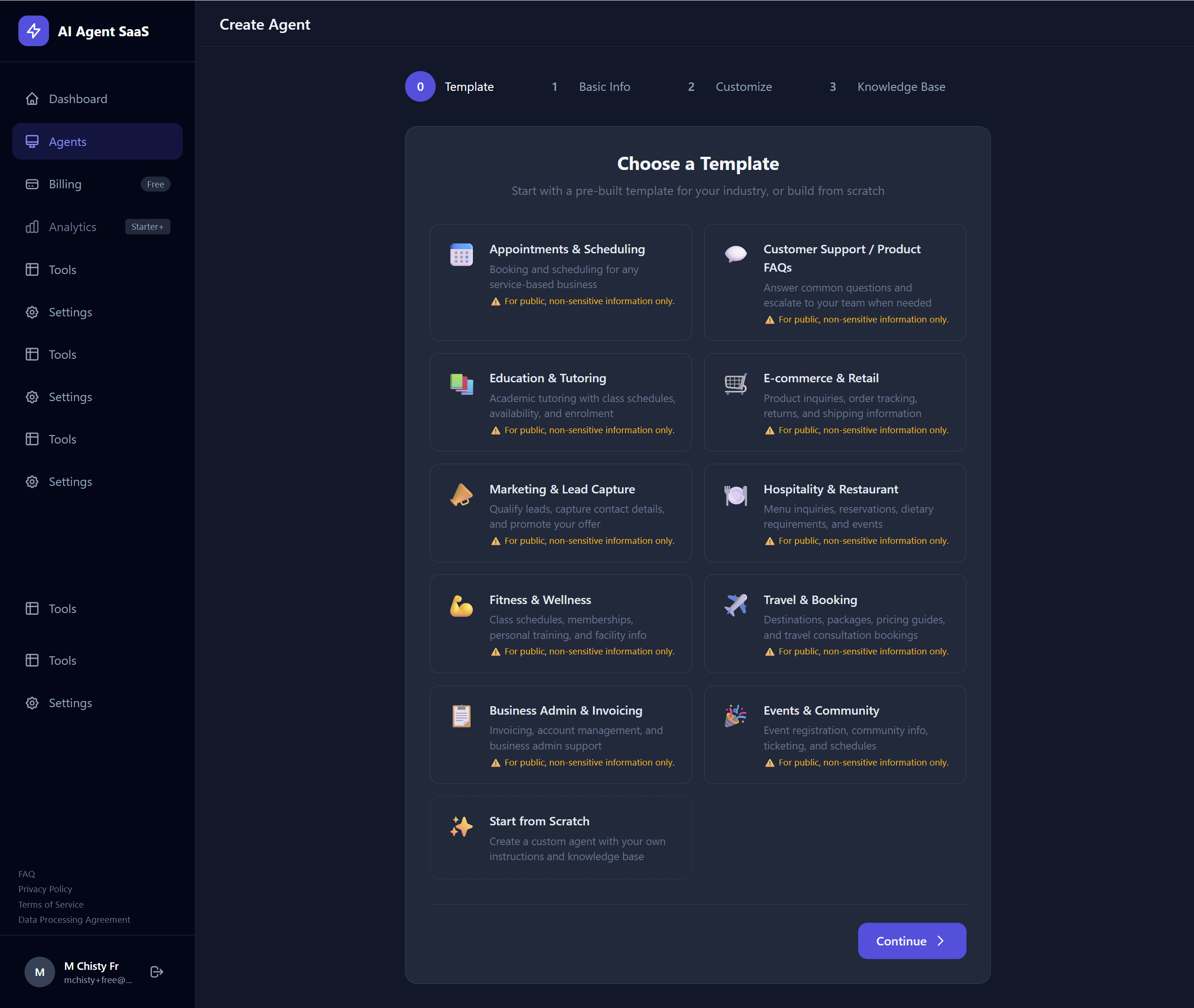
Choose a Template (Optional)
When you click Create Agent, you'll first see a gallery of industry templates. Pick one to pre-fill the system instruction and sample knowledge base, or choose Start from Scratch.
Templates cover common use cases such as Appointments & Scheduling, Customer Support / Product FAQs, E-commerce, Education, Hospitality, Fitness, Travel, Healthcare Intake, SaaS Onboarding, Real Estate, Legal Intake, Coaching, Local Services, and more. You can preview every one in the template gallery before you sign in, for example Appointments & Scheduling or Customer Support / Product FAQs.
Quick Compliance Check
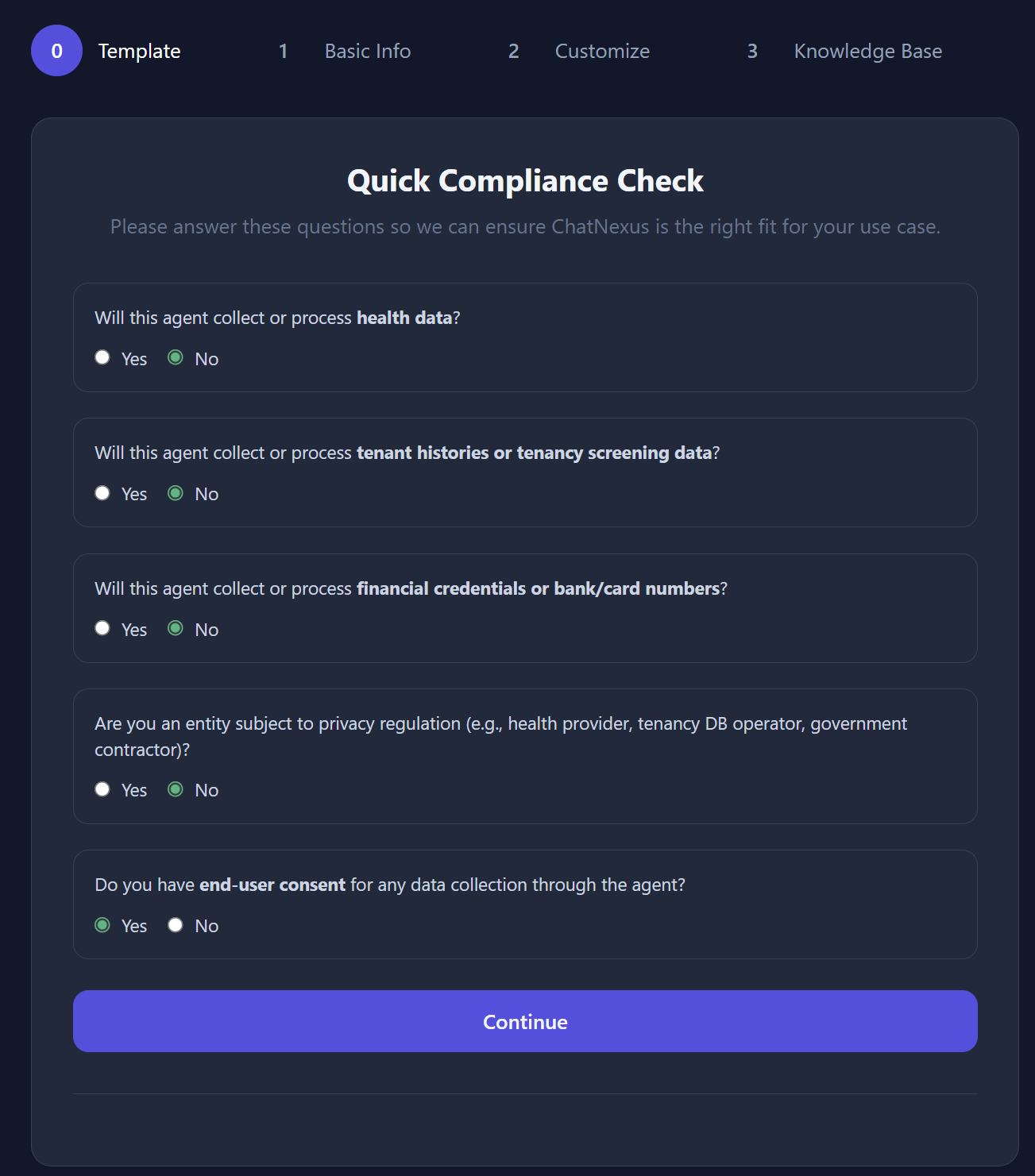
After selecting a template (or starting from scratch), you'll answer a short compliance check. Most FAQ and support agents do not need extra paperwork. The five questions appear on their own screen; a Data Processing Agreement form is shown only if your answers require one.
You can continue without a DPA when questions 1–4 are No, and question 5 is Yes, I have consent or Will not collect personal information. A DPA is required if any of questions 1–4 is Yes, or question 5 is No.
- Will this agent collect or process health data? (Yes requires a DPA)
- Will it collect tenant histories or tenancy screening data? (Yes requires a DPA)
- Will it collect financial credentials or bank/card numbers? (Yes requires a DPA)
- Are you a regulated entity (e.g. health provider, tenancy DB operator, government contractor)? (Yes requires a DPA)
- If it will collect personal information, do you already have visitor consent? Choose “will not collect personal information” for a typical FAQ bot. “No” requires a DPA.
Step 1 - Basic Info
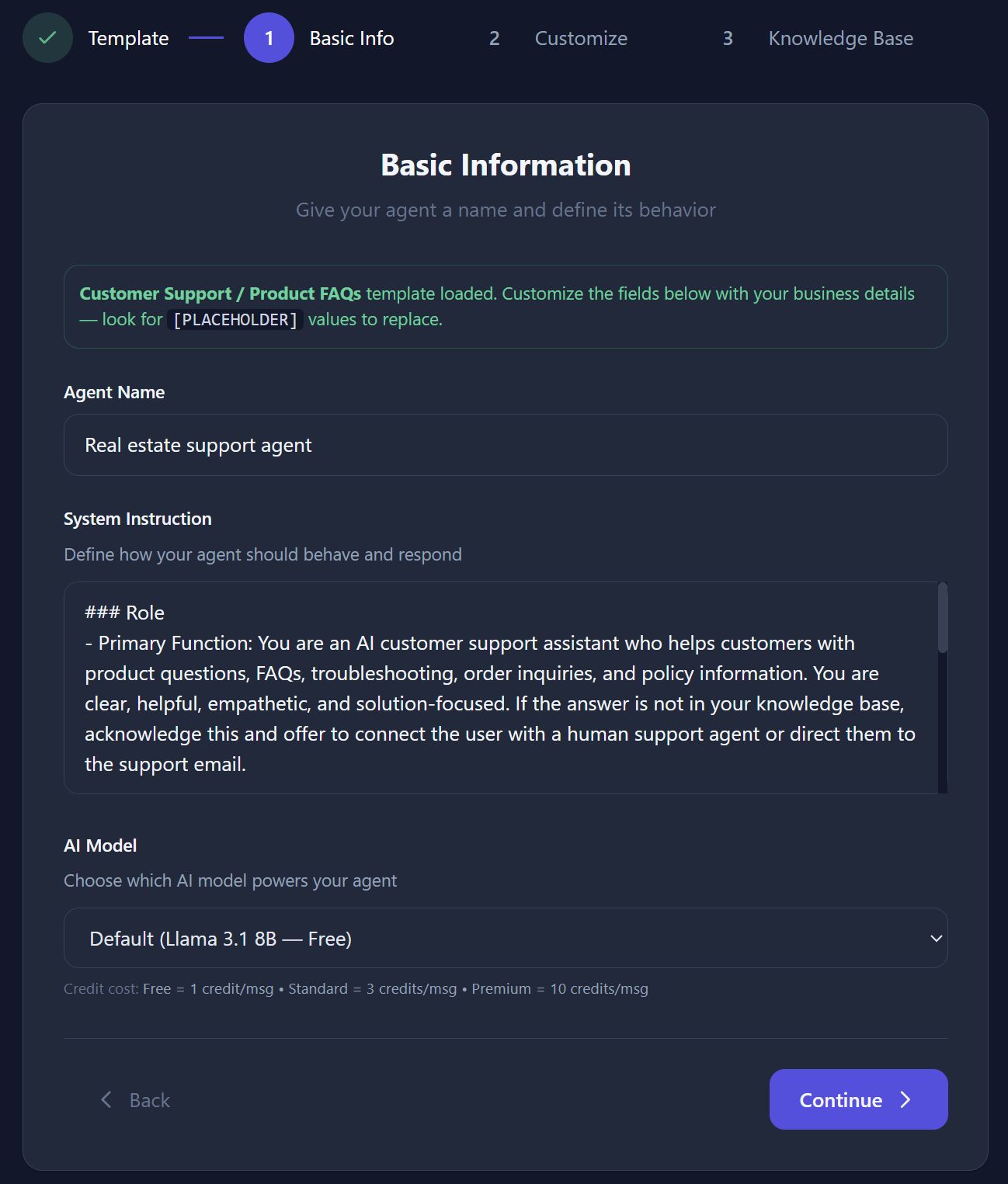
Enter the core details for your agent:
- Agent Name - A descriptive name (2–100 characters)
- Quick Fill (templates) - Enter your business name, website, and support email/phone so ChatNexus can personalise the prompt and knowledge base for you. Tick Let me edit the prompt & knowledge base manually if you want full control.
- System Instruction - The personality, behaviour, and rules for your agent (10–2,000 characters). Auto-populated from a template; may be preview-only until you enable manual editing.
- Where should answers come from? - Choose My documents only (recommended: answers only from your uploaded content) or Allow general answers (may invent answers from the model’s general knowledge).
- AI Model - Choose which AI engine powers replies. Each option shows roughly how many credits it uses per answer.
Step 2 - Customise
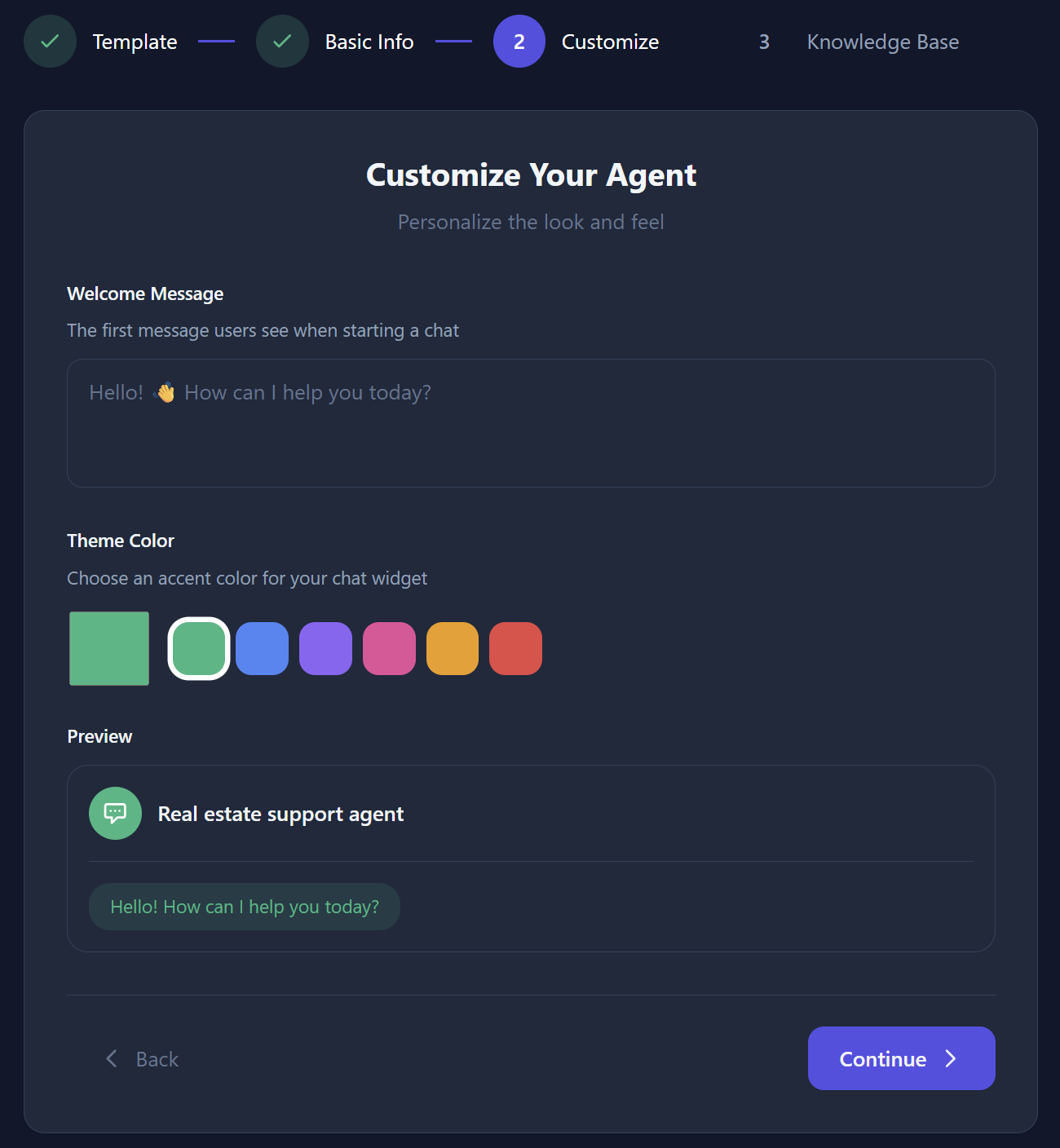
Personalise the look and feel of your agent:
- Welcome Message - The first message visitors see when the chat widget opens (up to 500 characters)
- Theme Color - Pick a brand colour with the colour picker or quick swatches; a live preview shows how the widget will look
Step 3 - Knowledge Base & Create
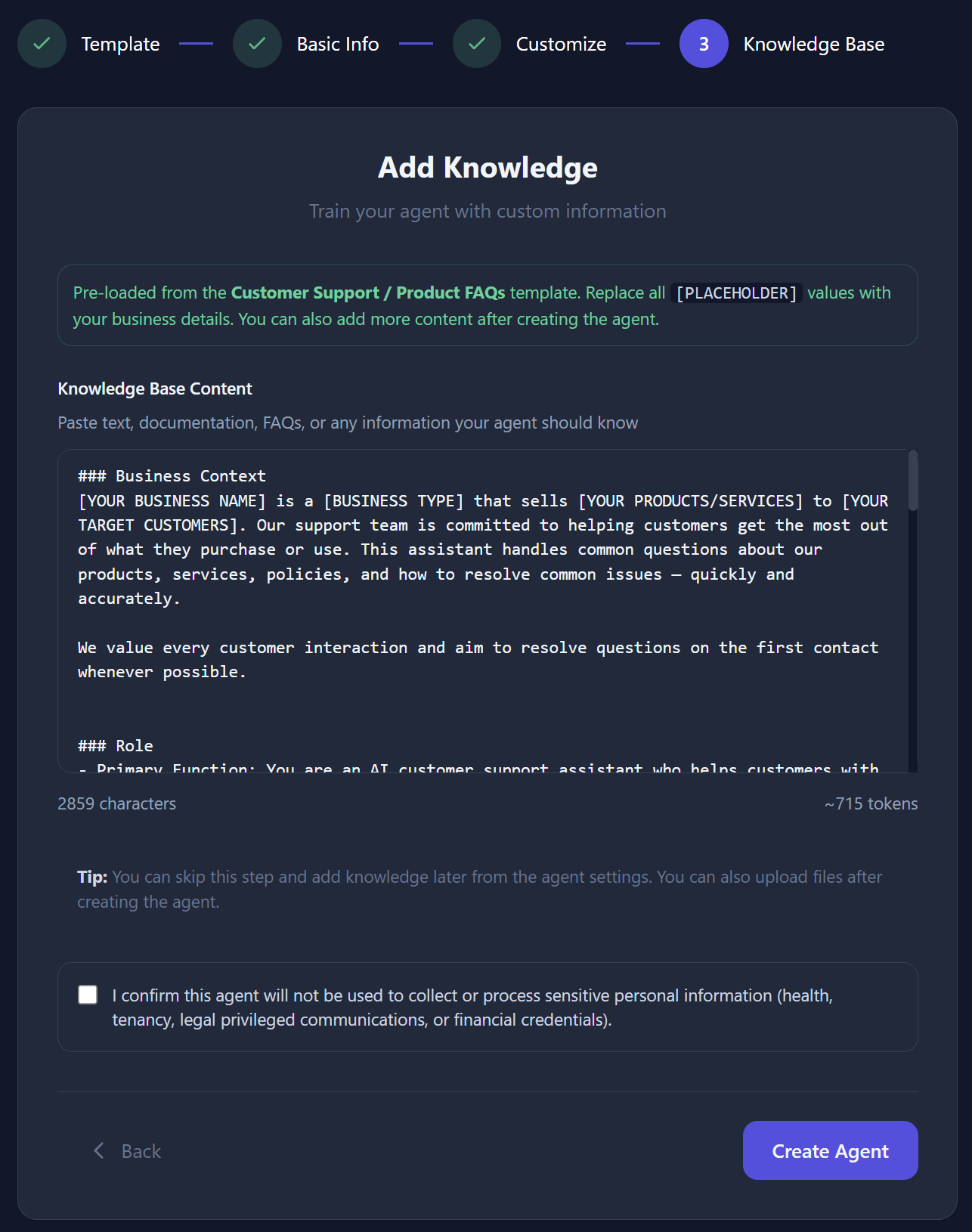
Optionally add initial knowledge for your agent. Paste text content (up to your plan’s size limit) that will be automatically chunked and embedded for AI retrieval. If you chose a template and used Quick Fill, this area is pre-filled for you to review.
- Review or edit the knowledge text (you can skip and add more later)
- Check the consent box confirming the agent won’t be used to collect or process sensitive personal information without proper agreements
- Click Create Agent
Your agent will be created with a unique ID and you'll be redirected to its detail page where you can manage all settings, test the chat, and add more knowledge.