This is not training
Connecting a Doc does not retrain the model. ChatNexus copies the text into that agent's knowledge base, splits it into short chunks, and searches those chunks when a visitor asks a question. Change the Doc later and, if auto-sync is on, the knowledge base can pick up the new text. For how to write the content so the search works, see how to build a knowledge base.
What you can connect
- A Google Doc, such as an FAQ or a returns policy
- A Google Sheet, such as a price list, opening hours, or a menu
Slides are not supported. A normal website URL still goes in the URL crawl box. A Google link in that box will not open. Google files have their own tab.
How to connect a file
Create the agent first. The Google Doc tab is on the agent's knowledge base, not on the create-agent screen.
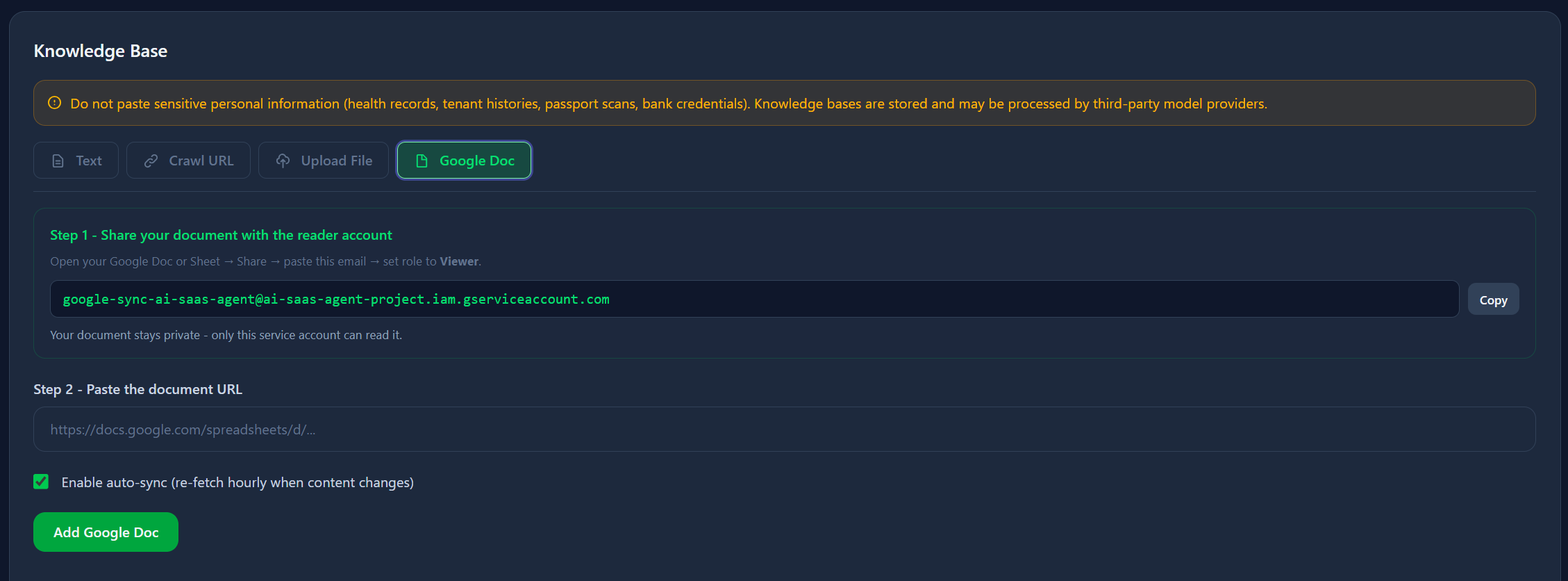
- Open the agent and go to the knowledge base. Choose the Google Doc tab.
- Copy the reader email shown there.
- In Google, open the file, click Share, paste that email, and set the role to Viewer. The file can stay private. You do not need to turn on "anyone with the link."
- Copy the file URL. It should look like
https://docs.google.com/document/d/...orhttps://docs.google.com/spreadsheets/d/.... - Paste it into ChatNexus. Auto-sync starts ticked. Leave it on if you want ChatNexus to check the file later.
- Click Add Google Doc. The same button is used for Sheets.
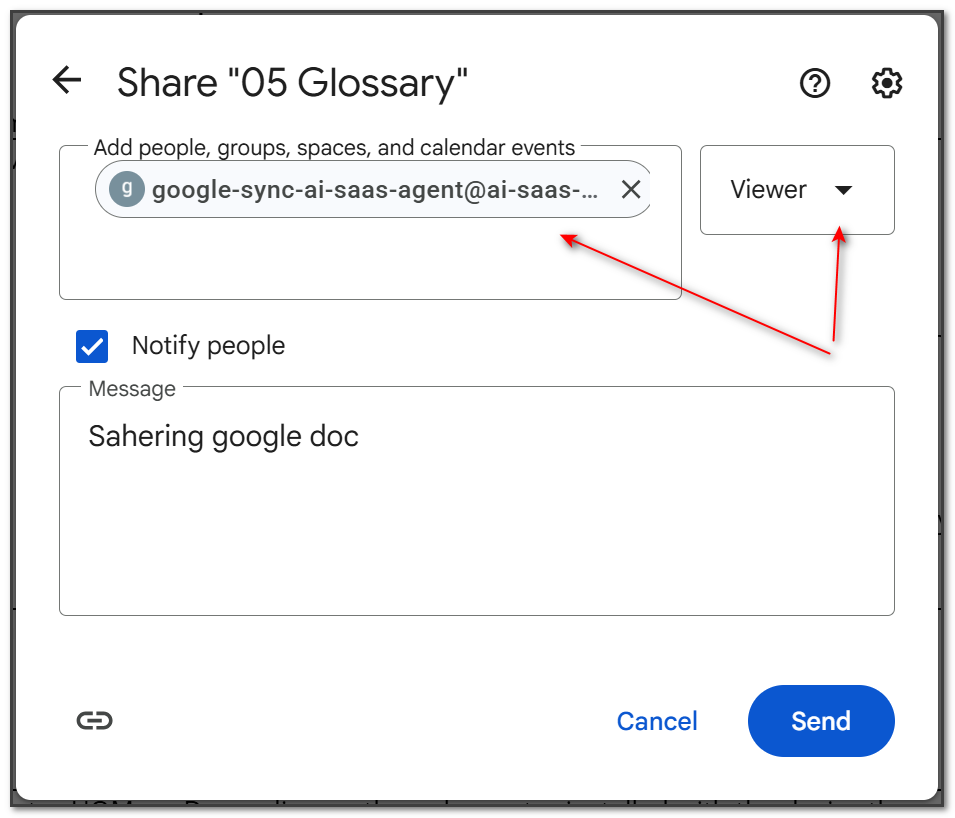
If the add fails, check two things. The reader email has to be on the file as Viewer.
And the file has to be a real Google Doc or Sheet. A Word file opened in Google Docs
will not import if the name still ends in .docx. Use File → Save as Google Docs,
share that copy as Viewer, and paste the new link.
Item | Price | Note with Flat white | 4.50 | Oat milk available
is stored as Item: Flat white, Price: 4.50, Note: Oat milk available.
That is easier for the bot to quote than a bare grid of cells.
What actually gets imported
A Doc comes in as plain text. Headings and paragraphs are kept as text. Images, comments, and suggested edits are not. A table inside a Doc is flattened, so a Sheet is the better place for rows of prices or hours.
A normal FAQ or price list is well under the size limit. Very long files are cut off at about 100 KB of text, and the imported copy ends with a note that it was truncated. Split a huge handbook into a few smaller Docs if you need all of it.
Do not put card numbers, patient notes, or other private records in a file the public bot can read. ChatNexus can refuse the file if it looks sensitive, and even when it accepts the text, the bot can repeat it to visitors.
When the bot sees your edits
Saving in Google does not update the bot at that second. With auto-sync on, ChatNexus checks about once an hour. If the text is the same, it leaves the knowledge base alone. If the text changed, it replaces the old chunks with the new ones.
You can also press Sync Now on that file in the knowledge base list. The list shows when it last synced, and a button to turn auto-sync off if you want the bot to stay on the version you already imported.

A simple way to test it
After the file finishes processing, open the test chat on the agent and ask something that is only answered in that Doc or Sheet. For a cafe sheet, try "How much is a flat white?" If the answer is vague, check the column names and whether the fact is written in one row, not spread across notes and a second tab the bot might not match.
You can still paste text, upload a .txt, .md, or PDF, and crawl
ordinary web pages on the same agent. Use the Google file for the page you and your team
already edit every week.
Share a Doc and ask it a question
Create an agent, share the file with the reader email as Viewer, and paste the link. Auto-sync checks about once an hour.
Get Started Free →