What the bot can take off your plate
Opening hours, prices, how to book, where a page is. Those are the same questions every week. The chatbot answers them from your knowledge base: FAQs, a PDF, a page on your site, or a Google Doc. It is not a separate model trained on your business. If the answer is wrong, you fix the document.
What you need
- A self-hosted WordPress site, or a WordPress.com plan that lets you upload plugins
- A free ChatNexus account (no credit card)
- Admin access to WordPress
The plugin is free. The ChatNexus Free plan includes 2 agents, 300 messages a month, and 300 credits, for 30 days from signup. Free accounts can use standard models only. Each agent can hold 100 knowledge base entries, and uploads are up to 5 MB.
Step 1 — Create the agent
Log in at chatnexus.cloud and create an agent. You can start from one of the 20 industry templates, or from a blank one.
Then add something for it to answer from:
- Paste FAQ text
- Crawl a normal page URL
- Upload a
.txt,.md, or PDF - Connect a Google Doc or Sheet, and turn on auto-sync if you want it checked about once an hour
Try a few real questions in the test chat. When the answers look right, open the agent and
copy the Agent ID from the Embed Widget box. It looks like
xxxxxxxx-xxxx-xxxx-xxxx-xxxxxxxxxxxx.
Step 2 — Install the plugin
Download the zip from chatnexus.cloud/integrations/wordpress. In WordPress go to Plugins → Add New Plugin → Upload Plugin, choose that zip, then Install Now and Activate.
Step 3 — Paste Your Agent ID and Go Live
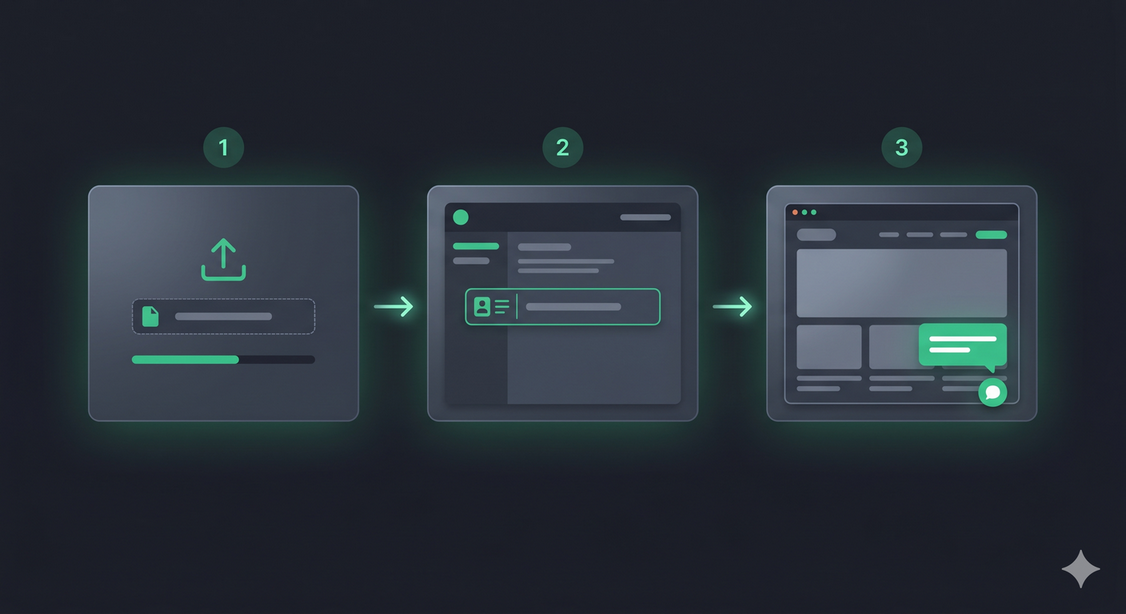
After activation, go to Settings → ChatNexus. You will see:
- ChatNexus Base URL — leave this as
https://chatnexus.cloudunless you were told otherwise - Agent ID — paste the ID from step 1
- Widget Position — bottom right or bottom left
- Auto-inject Widget — on by default, which adds the bubble to every page
Click Save Settings. Use the Test Connection button to verify the plugin can reach your agent. If successful, visit the front end of your site — the chat bubble is already there.
[chatnexus_chat] to any post, page, or widget area
where you want it to appear. You can even use a different agent per page:
[chatnexus_chat agent="your-other-agent-uuid"]
Lock the widget to your site
Allowed Domains starts empty, which means any site can use that agent ID. On the agent, add your domain:
yourcompany.com
That line also covers www.yourcompany.com and other subdomains. A site that
is not on the list is rejected before a reply is written, so it does not use your credits.
More detail is in
domain whitelisting.
Page builders
The plugin adds one async script. It does not need a special Elementor, Divi, or Gutenberg
block. Auto-inject puts the bubble on every page. If you turn that off, drop
[chatnexus_chat] into a shortcode block, a text module, or a classic widget area.
The no-code WordPress embed walkthrough
covers each option.
Already using a live-chat plugin? See how ChatNexus compares in Tidio vs ChatNexus.
Does it slow the page down?
The script tag uses async, so the rest of the page can keep loading.
The chat frame loads when someone opens the bubble. If Open chat by default
is on, the frame loads with the page. It is still an extra script, so it can nudge a
speed score. It does not block the page the way a big script in the header would.
Common questions
What about privacy?
Chats are stored so you can read them in the dashboard. There is no consent checkbox on a normal typed message. The mic shows a short notice the first time someone uses voice. Read the privacy policy, and update your own notice if visitors will type personal details. If the bot will handle health data, tenancy screening, or card numbers, you will be asked for a data processing agreement while you create the agent.
Can I match my site colours?
The accent colour and the welcome message are set on the agent, not in the plugin. The name in the chat header follows the voice you pick in Voice Settings (Alex, Sage, and so on). There is no separate avatar upload.
What happens when Free runs out?
Visitors see a plain message, depending on what ran out:
- Monthly messages: they are told you have reached the message limit and need to upgrade.
- Credits: they are told the AI usage limit for the month has been reached.
- The 30-day window: they are told free access has ended.
On a paid plan you can allow extra usage up to a spending limit in Settings. Upgrading is on the Billing page.
Add the chat bubble to WordPress
Free plan: 2 agents, 300 messages, 300 credits, 30 days from signup. Download the plugin and paste your agent ID.
Get Started Free →