Back to all posts
ChatNexus Blog

Voice-Enabled AI Chatbots: How TTS and Whisper Change the User Experience

Text-based chat interfaces have been the default for AI assistants since day one. But for a growing number of use cases — accessibility, hands-free kiosks, hospitality tablets, mobile-first audiences — typing is a friction point, not a feature. Voice-enabled AI chatbots remove that friction entirely.

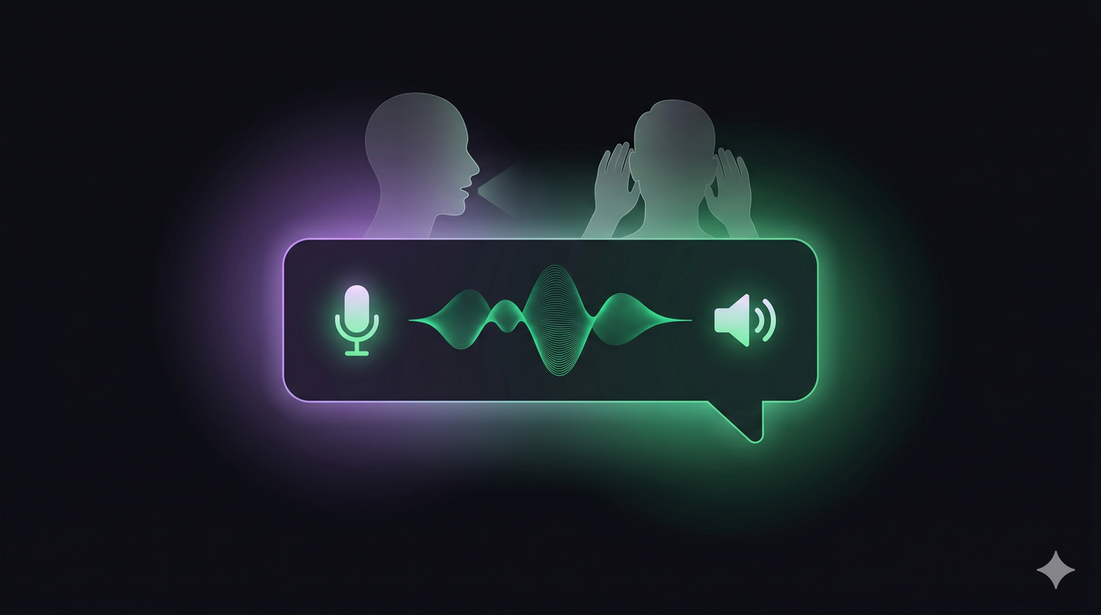
Sound waves emanating from an AI chat interface with microphone and speaker icons
Voice input and voice reply transform a chat widget into a natural, conversational AI experience.

Two Distinct Voice Modes

Voice capability in a chatbot isn't a single feature — it's two independent pipelines that can be enabled separately or together depending on your use case.

Voice Input — Whisper Transcription

When voice input is enabled, a microphone button appears in the chat widget. The user taps it, speaks their question, and the audio is transcribed to text using OpenAI Whisper — one of the most accurate speech-to-text models available. The transcribed text is then processed exactly like a typed message.

From the AI agent's perspective, nothing changes: it still receives text and responds with text. The voice input layer is a pure accessibility enhancement at the input stage.

Voice Reply — Text-to-Speech

When voice reply is enabled, the agent's text responses are automatically converted to spoken audio using OpenAI's TTS model. A speaker button appears on each AI message bubble, and responses can be set to auto-play when the user has asked a question via the mic.

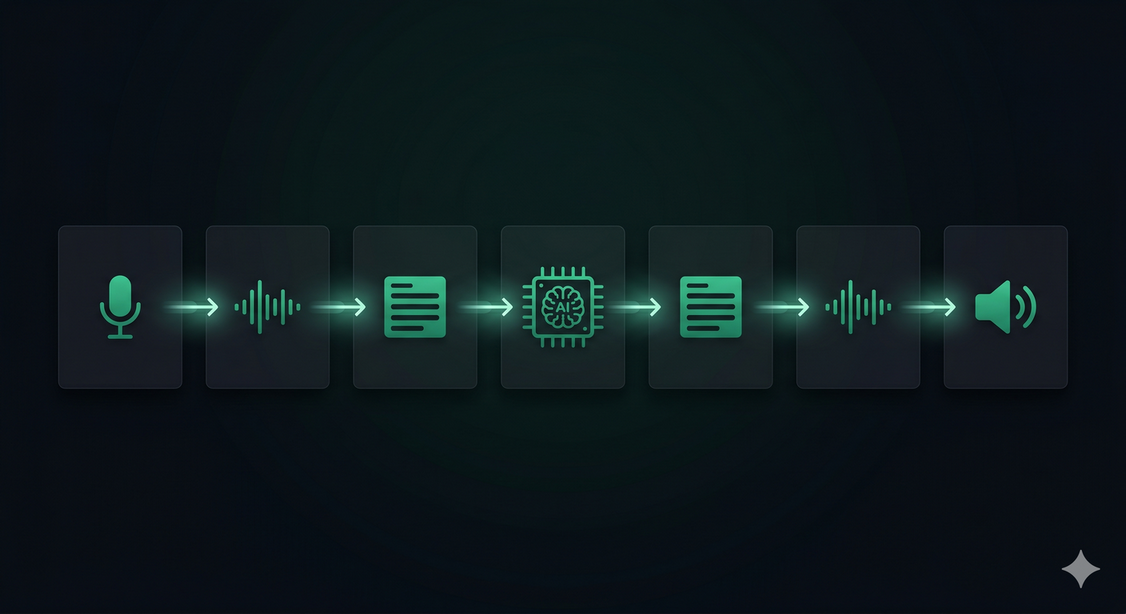
The result is a fully conversational loop: speak → AI thinks → AI speaks back.

Voice pipeline diagram: microphone to transcript to AI to TTS to speaker
The two-way voice pipeline — Whisper handles input transcription; TTS handles spoken replies.
ℹ️
Plan note: Voice Input (mic transcription) is available on all plans. Voice Reply (TTS spoken responses) requires the Starter plan or above.

When to Enable Voice Features

Not every chatbot deployment benefits equally from voice. Here's a practical breakdown of the use cases where each mode adds the most value.

Voice Input is most valuable when:

  • Mobile is your primary audience — typing on a small screen is slow. A mic tap is faster.
  • Accessibility matters — users with motor impairments, dyslexia, or low literacy benefit significantly from speaking instead of typing.
  • Complex queries are common — explaining a problem verbally is often faster and more natural than typing a multi-sentence description.

Voice Reply is most valuable when:

  • Hands-free operation is needed — kiosk terminals, reception tablets, in-car interfaces, or smart display devices where the user can't type.
  • Hospitality and service environments — a spoken welcome message or spoken booking confirmation feels premium and attentive.
  • Accessibility — users with visual impairments can interact entirely without reading the screen.
  • Short, high-value responses — TTS works best for concise answers. A 30-second spoken response feels natural; a 3-minute monologue does not.

Choosing a Voice for Your Brand

ChatNexus offers eight distinct TTS voices, each with a different character. Choosing the right one has a real impact on how users perceive your brand.

Voice Character Best for
Alloy Neutral, balanced General-purpose; safe default for any industry
Ash Male, clear Technical support, SaaS, professional services
Ballad Male, warm Hospitality, onboarding, welcoming contexts
Coral Female, friendly Retail, e-commerce, consumer brands
Echo Male, confident Finance, real estate, authoritative contexts
Sage Female, calm Healthcare, wellness, legal, careful contexts
Shimmer Female, expressive Beauty, lifestyle, creative industries
Verse Male, versatile Education, content platforms, media

You can preview each voice from the Voice Settings section of your agent configuration before committing. Try a few with a sample response from your actual knowledge base — the difference becomes obvious quickly.

Speed Controls

TTS responses can be played back at speeds ranging from 0.5× (50%) to 2.0× (200%) of the natural rate, adjustable in 10% increments. The default is 1.0× (100%).

Consider adjusting speed for your use case:

  • Slower (0.75×–0.9×) — healthcare or elderly-oriented services where clarity is more important than speed
  • Default (1.0×) — appropriate for most contexts
  • Faster (1.1×–1.3×) — power users or platforms where users already know the content (e.g., brief notification-style confirmations)
💡
Tip: Match the voice speed to your response length. Short, punchy answers sound natural at 1.0×. Long detailed responses often benefit from a slight slowdown to 0.9× — it gives the listener time to absorb the information without feeling rushed.

How TTS Costs Work (and Why Caching Matters)

Voice reply adds a TTS API call on top of the standard LLM text generation cost. OpenAI's TTS pricing is based on the number of characters in the text being synthesised.

ChatNexus mitigates this in two ways:

Smart caching

Synthesised audio is cached for 7 days per unique combination of voice, speed, and text. If 100 users ask "What are your opening hours?" and the answer is the same each time, the TTS API is called once — not 100 times. Cached responses are served instantly with no API latency.

Streaming segmentation

For longer responses, audio synthesis begins on the first sentence while the rest of the text is still being generated. This means the user starts hearing the response in under a second rather than waiting for the full text to complete before audio begins.

⚠️
Cost tip: Keep voice reply responses concise. TTS cost scales linearly with character count. A system prompt instruction like "Keep spoken replies under 3 sentences" can substantially reduce your TTS spend without impacting the usefulness of answers.

Voice Input and User Consent

Microphone access requires explicit browser permission. ChatNexus handles this with a built-in consent banner that appears the first time a user taps the mic button. The user must check a consent checkbox before recording begins. Consent is stored locally per agent so returning users aren't prompted again.

Audio recorded for transcription is not stored by ChatNexus. It is sent directly to OpenAI Whisper for transcription and the raw audio is discarded immediately after the text transcript is returned.

Enabling Voice on Your Agent

Voice settings are configured per agent in the Voice Settings section of the agent configuration page. The controls are:

  • Voice Input toggle — enables the microphone button in the chat widget. Available on all plans.
  • Voice Reply toggle — enables TTS playback for AI responses. Requires Starter plan or above.
  • Voice selection — choose from eight distinct voices with real-time preview.
  • Speed slider — adjust playback speed from 50% to 200% in 10% steps. Updates live as you move the slider.
Voice doesn't make a chatbot smarter — it makes it feel more human. And in a world where users are comparing your AI assistant to every voice interface they've ever used, feeling human matters.

Enable Voice on Your AI Agent

Voice Input is available on all plans. Voice Reply (TTS) is available on Starter and above. Configure both from your agent's Voice Settings in minutes.

Get Started Free →