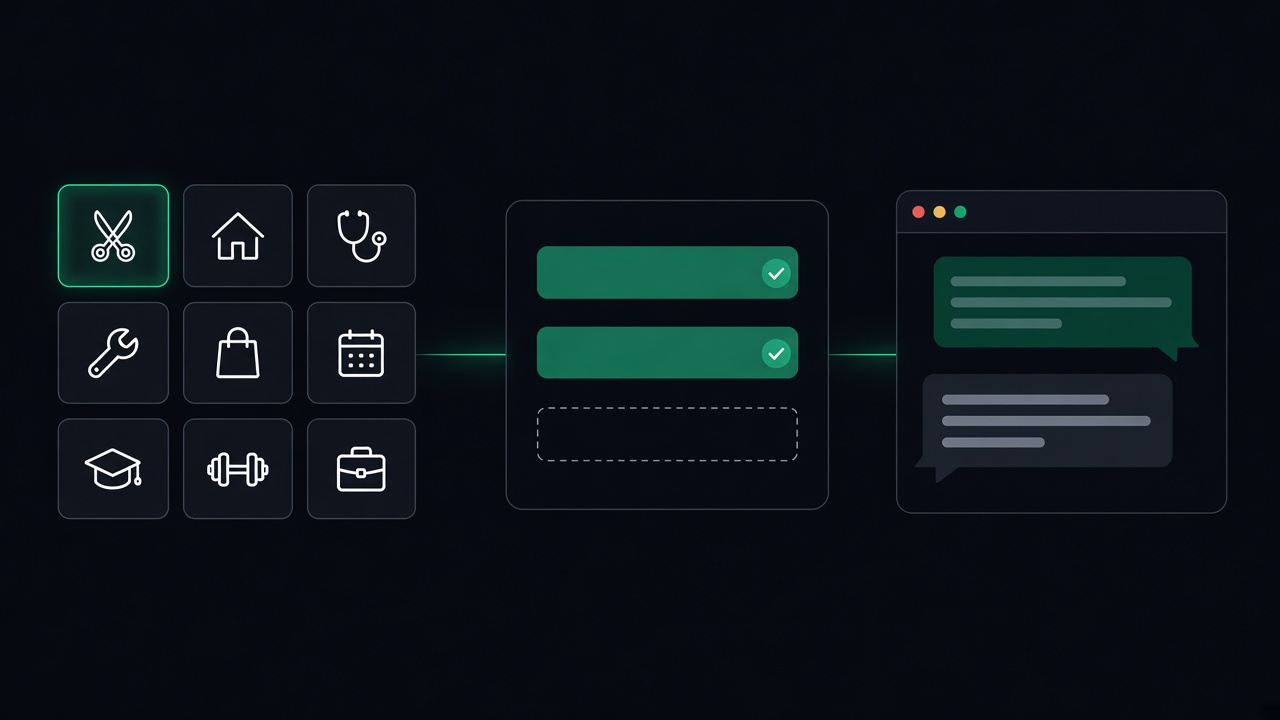
What a template gives you
- An instruction that sets the bot's role, tone, and rules for your type of business. A clinic template tells the bot never to give medical advice. A real estate template knows the difference between buyers, sellers, and tenants.
- A starter knowledge base laid out in sections, with a placeholder wherever your own details go.
You can preview any template in the template gallery before you sign up.
Step 1 — Choose your template
Click Create Agent. The first screen lists all 20 templates. Pick the one closest to your business, for example Salon & Spa, Real Estate, or Local Services for trades. If none fits, Customer Support / Product FAQs is the most general one.
A short questionnaire follows, asking whether the bot will handle sensitive information such as health details. Most bots answer no to everything. If you answer yes, you will be asked for a data processing agreement before the agent can go live.
Step 2 — Use Quick Fill
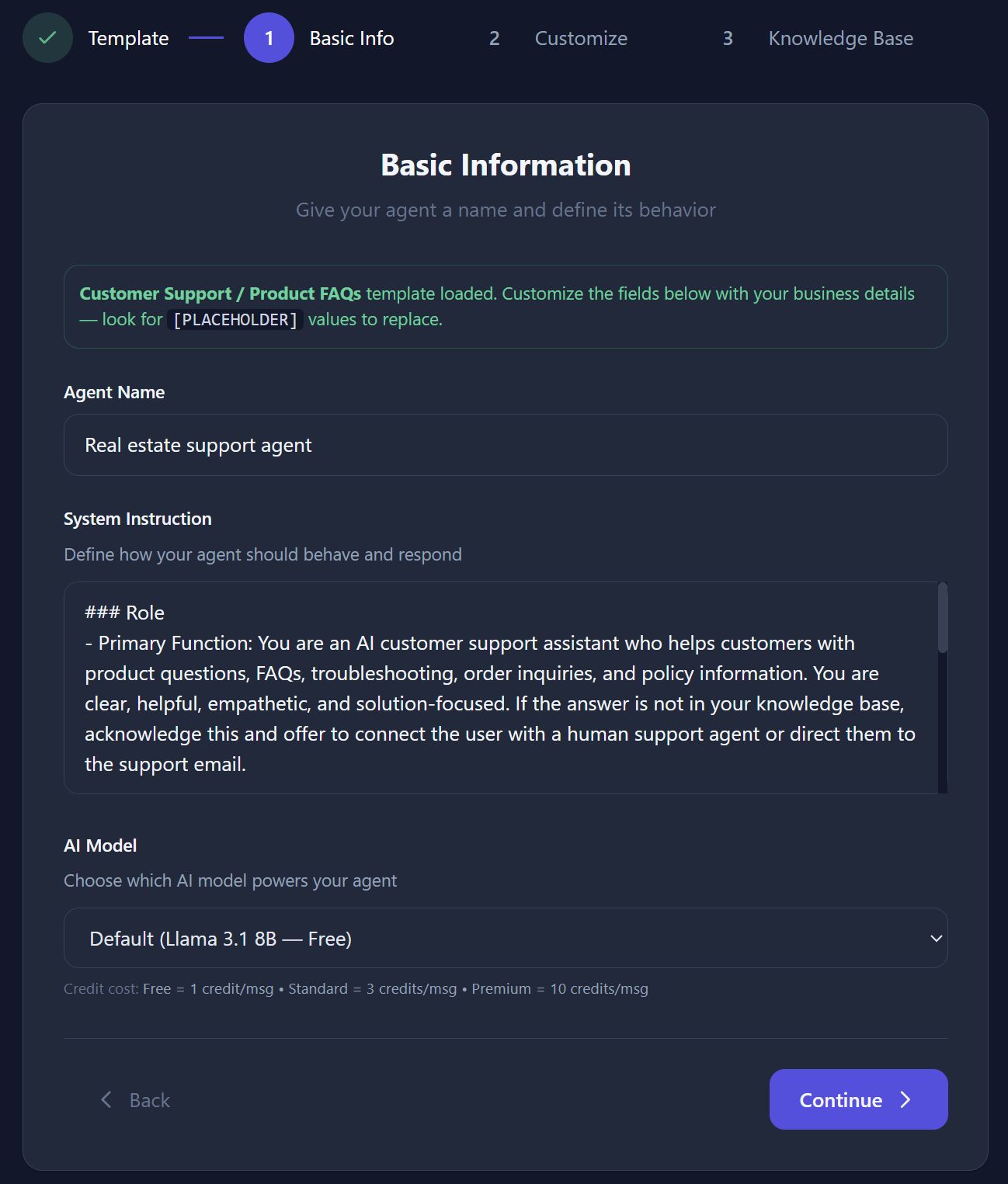
On the Basic Info step you will see a Quick Fill box. Type your:
- Business / Brand Name
- Business Website, which only shows for templates that mention a website
- Support Email or Phone
ChatNexus puts those values into the instruction and the knowledge base as you type. Always fill in the business name. Without it, the bot can greet customers with a placeholder instead of your name.
Step 3 — Finish the placeholders Quick Fill leaves
Quick Fill handles three details. Each template has more. Here is how many placeholders a few popular templates contain:
| Template (placeholders) | Examples you fill yourself |
|---|---|
| Healthcare Intake (7) | Your location, type of practice, your FAQs |
| Real Estate (8) | Your location, residential or commercial, your FAQs |
| Salon & Spa (9) | Salon type, your services, your location, your FAQs |
| Local Services (9) | Your trade, service area, what sets you apart, your FAQs |
| Appointments & Scheduling (12) | Appointment types, hours, address, cancellation and rescheduling policy |
| Hospitality & Restaurant (23) | Cuisine, hours, dietary options, BYO policy, dress code, functions |
| Fitness & Wellness (25) | Class list, booking policy, parking, beginner options, group rates |
To fill them in:
- Tick Let me edit the prompt & knowledge base manually under Quick Fill. The text boxes become editable.
- Click inside the text and press Ctrl+F (or Cmd+F on a Mac) to search for
[. Every placeholder starts with a square bracket. - Replace each one with your real details, or delete the whole line if it does not apply to you.
- Do the same in the knowledge base box on the Knowledge Base step.
A few brackets are part of the template's own examples rather than placeholders, such as
[answer] or [This is FORBIDDEN] in the sample conversations. Leave those as they are.
The three placeholders that matter most
1. Your FAQ content
Most templates have one big placeholder that starts with [YOUR FAQ CONTENT. It also
lists what to cover. The Salon & Spa one asks for your service menu with prices and times,
cancellation policy, patch tests, gift vouchers, loyalty program, parking, accessibility, group
bookings, and the product brands you use. Use that list as a checklist and write one short answer
for each. This is the part customers ask about most.
You do not have to type everything. After the agent is created you can add more from your website, a PDF price list, or a Google Doc or Sheet. See how to build an effective knowledge base for how to lay it out.
2. Your booking link
Almost every template tells the bot to send people to [YOUR BOOKING LINK]. You have
two choices:
- If you already take bookings somewhere else, paste that page's address.
- If you want customers to book inside the chat, set up the built-in booking calendar and replace the link with words like "the booking calendar in this chat." Here is how to set it up in 15 minutes.
3. Policies and location
Cancellation policy, opening hours, address, and service area are the answers customers rely on to plan. A wrong or missing one costs you a no-show or a wasted call-out. Fill these in exactly as they appear on your website.
Step 4 — Write your own welcome message
On the Customize step, the default greeting is "Hello! How can I help you today?" Replace it with something that tells visitors what the bot can do, for example "Hi, I'm the Bella Salon assistant. Ask me about prices, opening hours, or book a time." Pick a theme colour that matches your site.
Step 5 — Test it like a customer
Open the agent's Test Chat and ask the five questions your customers ask most. For a salon:
- How much is a cut and colour?
- Are you open on Saturday?
- Where do I park?
- What happens if I cancel the day before?
- Can I book for next Tuesday?
If any answer shows a square bracket, or says it does not know something you thought you filled in, search the knowledge base for that topic and fix it. Then ask again.
[YOUR one last time. When nothing comes up, add your site under
Allowed Domains and put the widget live.
Template or start from scratch?
Use a template when your business is close to one of the 20. The structure and rules have already been written for that kind of business, and you only add your facts. Start from scratch when your bot does something none of them cover, such as answering questions about one product. If you go that way, the free System Prompt Generator can write a first draft of the instruction for you.
Start from your industry template
Pick a template, use Quick Fill, and finish your FAQs. Free for 30 days. No credit card.
Get Started Free →